











Managing a Shopify store could be a struggle with all the switches between admin pages and attempts to find the right solution for your specific problem. To make merchants' lives easier, the Shopify team developed a personalized AI assistant – Sidekick. It has all the knowledge about how Shopify works and can answer any of your questions.
However, there is still a problem – how to use Sidekick properly to speed up your store management rather than being stuck on handling tons of information? That's the question we try to answer in this article, discussing Shopify Sidekick in detail.
TL;DR: Shopify Sidekick AI assistant essentials
Sidekick is an AI-powered tool within the Shopify dashboard that helps merchants handle store setup and management.
Shopify AI Sidekick can generate content, create summaries, analyze your store data, and guide you across Shopify features and documentation.
To interact with Sidekick properly, you can use built-in features, such as Skills, Mentions, Target, Voice chat, screen sharing, and more.
The most popular Shopify Sidekick use cases include store setup, quick support, content generation, product page creation, data analysis, and marketing automation.
Shopify Sidekick benefits include faster store management, reduced learning curve, data interpretation, and quick troubleshooting.
Sidekick limitations include a lack of integration with third-party services, AI hallucinations, limited theme editing, and time-consuming prompt creation.
What is Shopify Sidekick?
Shopify Sidekick is a built-in AI-powered conversational tool trained on all Shopify data using Anthropic’s Claude 4.5 Sonnet model. It was developed to help merchants get guidance across their admin and all Shopify features they need to set up and manage their stores. On top of that, Sidekick can understand the context of an individual store, giving you personalized advice and suggestions to improve store quality, and even performing some tasks.
Shopify AI Sidekick is one of the tools included in Shopify Magic – a suite of AI-powered features. Sidekick is free for all merchants regardless of their current Shopify pricing plan. It supports over 20 languages, including English, Japanese, and Chinese. Merchants also have access to voice conversations in English on desktop and mobile. Support for other languages is coming soon.
To briefly sum up, Sidekick in Shopify is your personal free AI assistant that helps you find proven information, perform tasks faster, and make informed decisions based on the knowledge of all Shopify features and on the analysis of your store's specifics.
How Shopify Sidekick works
Shopify Sidekick works as a specialized AI chatbot implemented in the Shopify admin. You can access it both from desktop and mobile (except for tablets) from any admin dashboard page. Just as with any AI assistant like ChatGPT or Claude, you can communicate with Sidekick using prompts or voice requests.
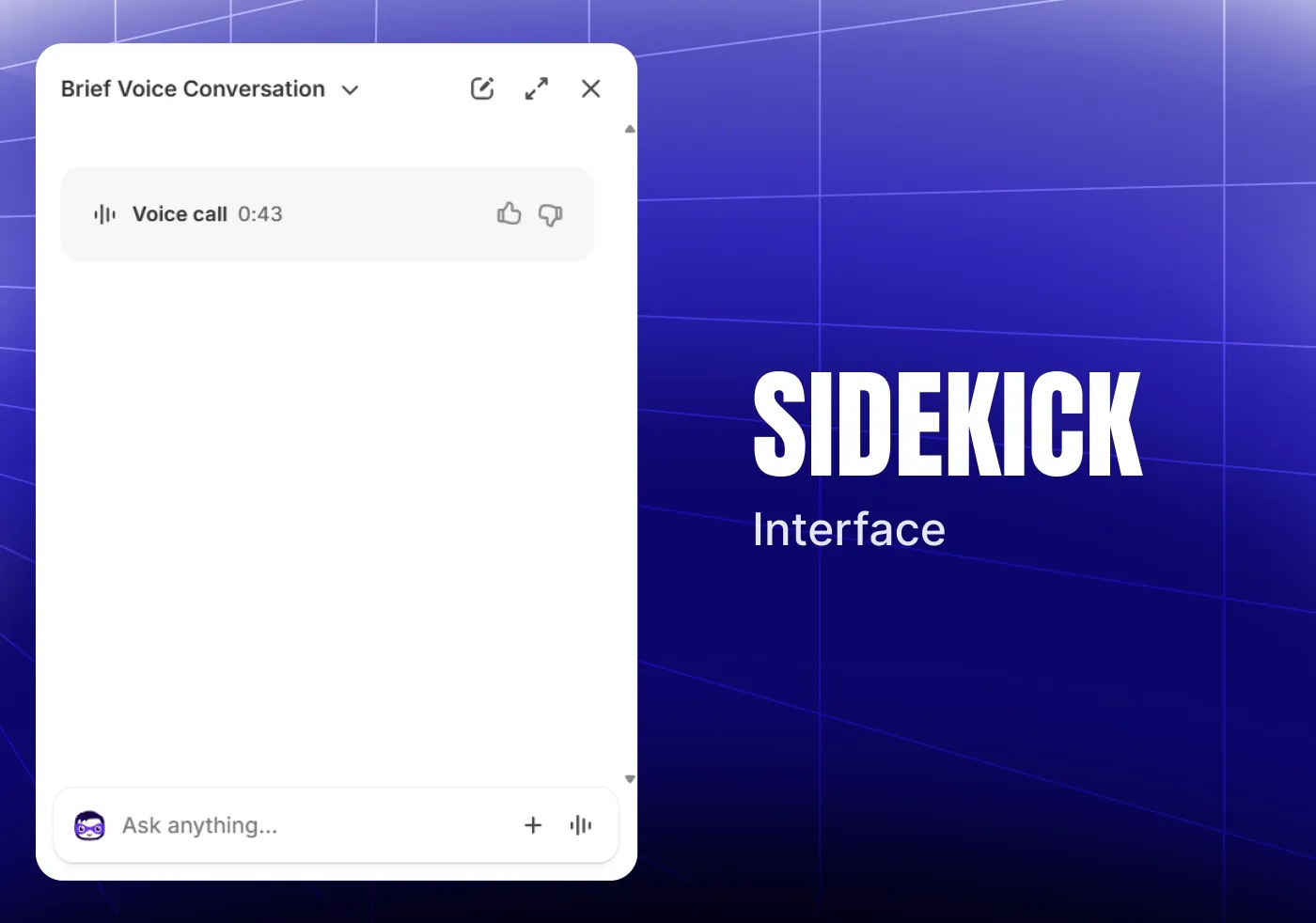
Sidekick interface.
Sidekick remembers conversations if the memory toggle is on, so it provides answers based on your specific context. It stores up to 50 of your explicit preferences to use this information for future conversations and adapts its responses to match your style of communication.
The Shopify assistant has access to your store data, such as products, orders, and customers. However, it interacts with data based on user permissions and provides users with insights based on their available information. For example, if your staff has access only to inventory, they won't be able to get customer behavior reports via Sidekick.
Next, let's see how to get started with the Shopify Sidekick AI assistant.
Getting started with Sidekick: tips and features
You can use Sidekick in a standard panel mode or a full-screen mode for an extended workspace by clicking its icon in your Shopify admin. The process is much like chatting with ChatGPT – write a prompt and get a response.
Still, there are some specifics you should consider.
- You can access chat history to find specific conversations by clicking on the name of your current conversation. Use filters to find information you need, and if you want to remove any conversation, just click the More actions button and select Delete.
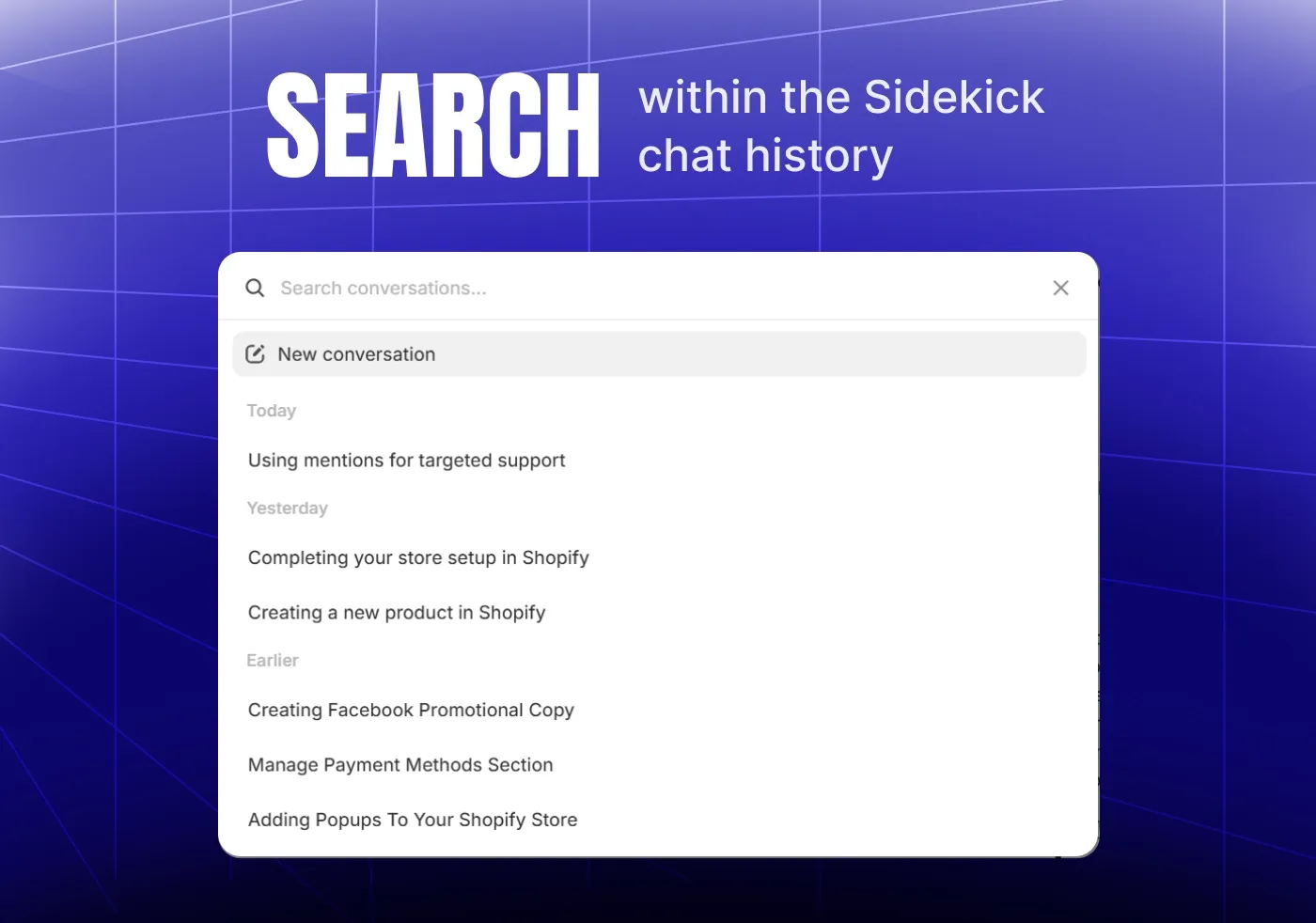
Search within the Sidekick chat history.
- To manage stored information, you can ask Sidekick to show you a summary of what it remembers about your preferences and request that it remove some details.
- You can enhance interactions when using Shopify Sidekick with AI assistant features.
Skills. Save up to 25 prompts to reuse them with a single command. This way, you don't need to write the same prompt again and again or try to remember what you used before; just select a saved skill from the list in the chat.
Mentions. Mention specific products, orders, customers, and collections using '@' to give Sidekick the context for your request.
Target. Select elements in the admin to provide Sidekick with the context, instead of describing it in words.
Voice. Use the Voice button to start a call with Sidekick, switching to the hands-free mode. After the conversation, you will see the call summary in the chat.
Files. Attach files from your admin or upload files from your computer to show Sidekick a reference for content generation, use them in analysis, and more.
Screen sharing. Share screen with Sidekick to get personalized support for your specific problem. This feature is in early access.
Feedback. Evaluate the quality of Sidekick's responses with the Thumbs up and Thumbs down buttons to improve its functionality.
- If you activate Shopify Network Intelligence, you can use Sidekick Pulse – a tool that proactively monitors your store and generates personalized recommendations without your direct request.
You can find the complete description of all Shopify Sidekick features in the Shopify documentation.
How to use Shopify Sidekick AI assistant: use cases with examples
Let's explore how to use Sidekick on Shopify in your everyday store management routine. We've compiled the most important use cases so that you can benefit from the tool right away.
Store setup
Sidekick can help you set up your store, adding missing features. It analyzes your current setup and suggests the next steps you can take to improve your store. For example, to set up a Shopify store, you can ask Sidekick to help you configure your store and follow the recommended steps if they fit your needs.
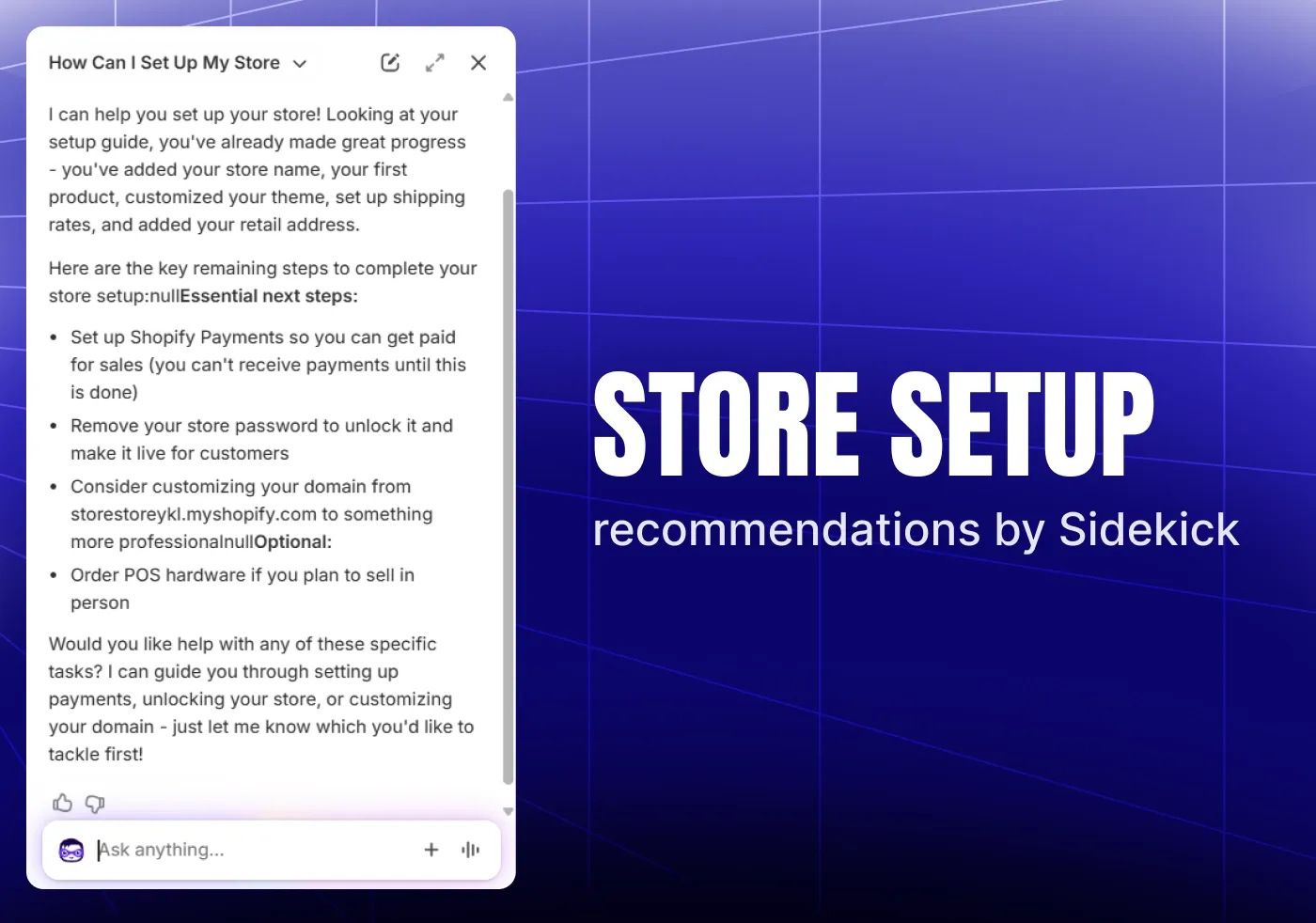
Store setup recommendations by Sidekick.
Quick support
Sidekick provides you with how-to-guides, links to admin sections, and documentation on your request. This helps you switch to the necessary information without spending too much time on manual exploration. See the example below, showing Sidekick guides a user toward documentation about Markets – a feature for international selling on Shopify.
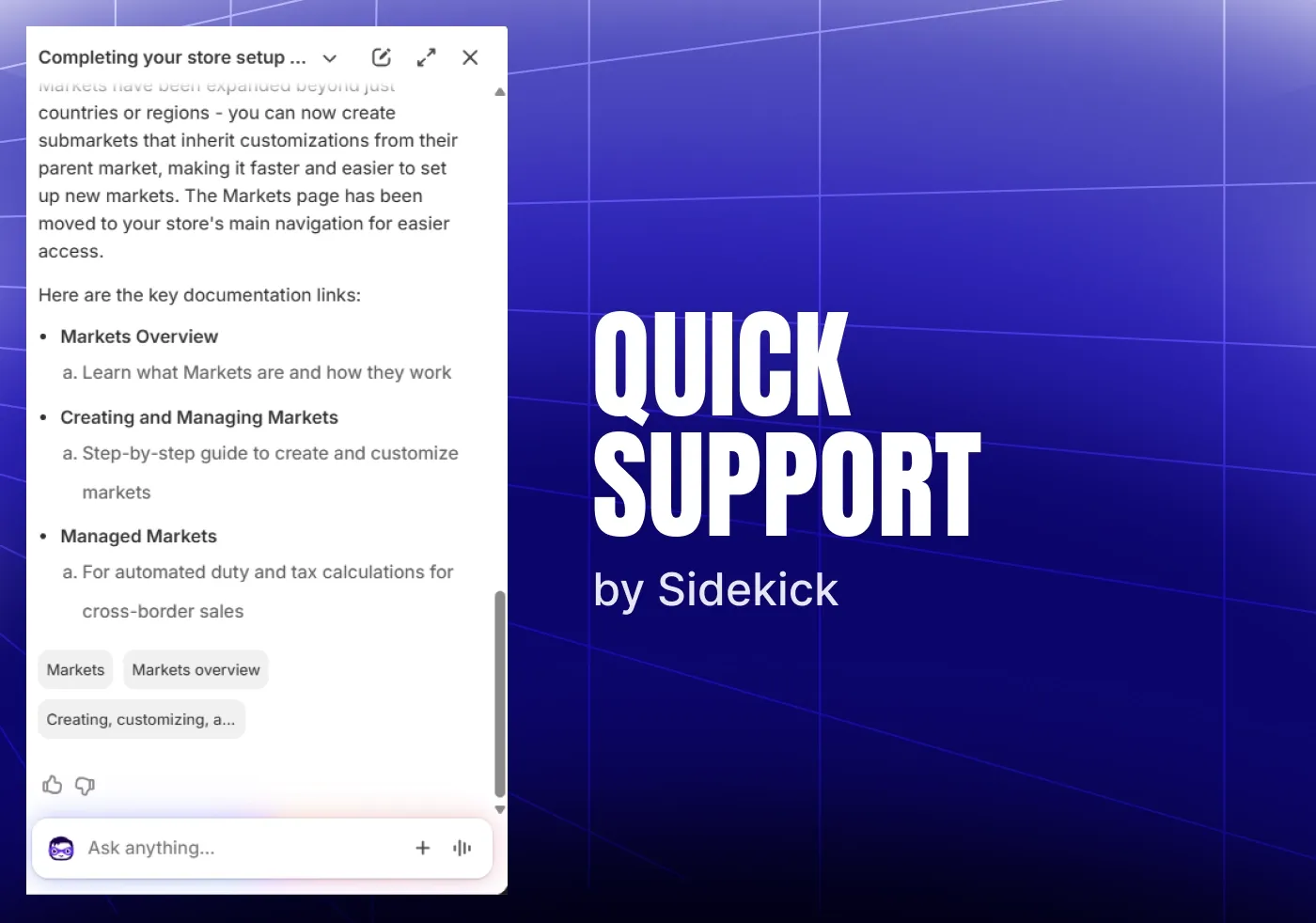
An example of quick support by Sidekick.
Content generation
You can use Sidekick to generate texts and images for your product pages, emails, or any theme section. It provides not just generic texts, but creates ideas based on your prompts, using your store data, and requirements for a specific content format. For example, if you need a text for your new product, Sidekick will align it with the required fields in the admin and the best practices for building high-converting product pages.
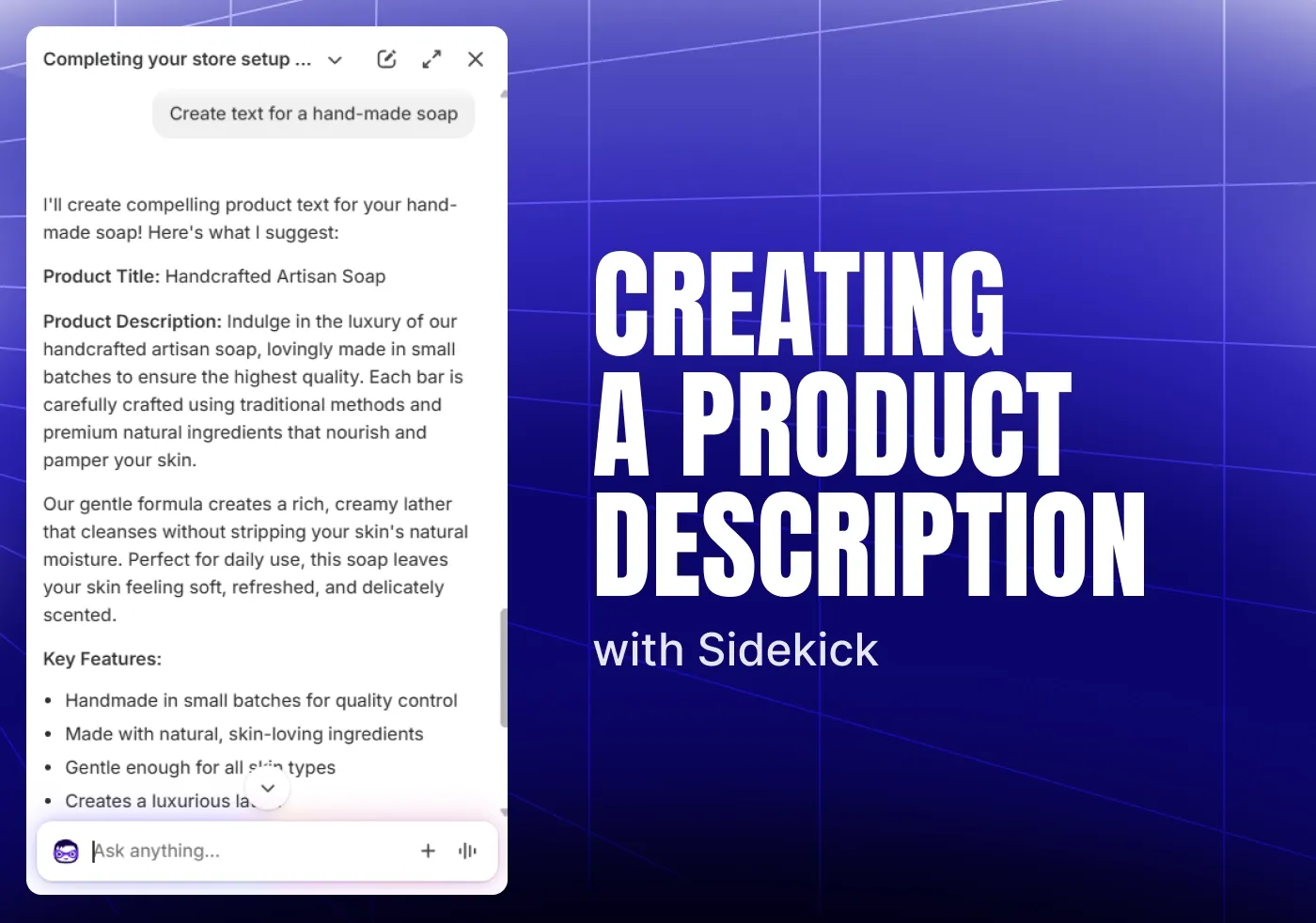
An example of creating a product description with Sidekick.
Page creation
Once you have created the text for your product and edited it in line with your preferences, you can ask Sidekick to create a product page for you, adding previously generated content. In addition to the product description, it adds an SEO title and description, a product URL, and even a price to the newly created page.
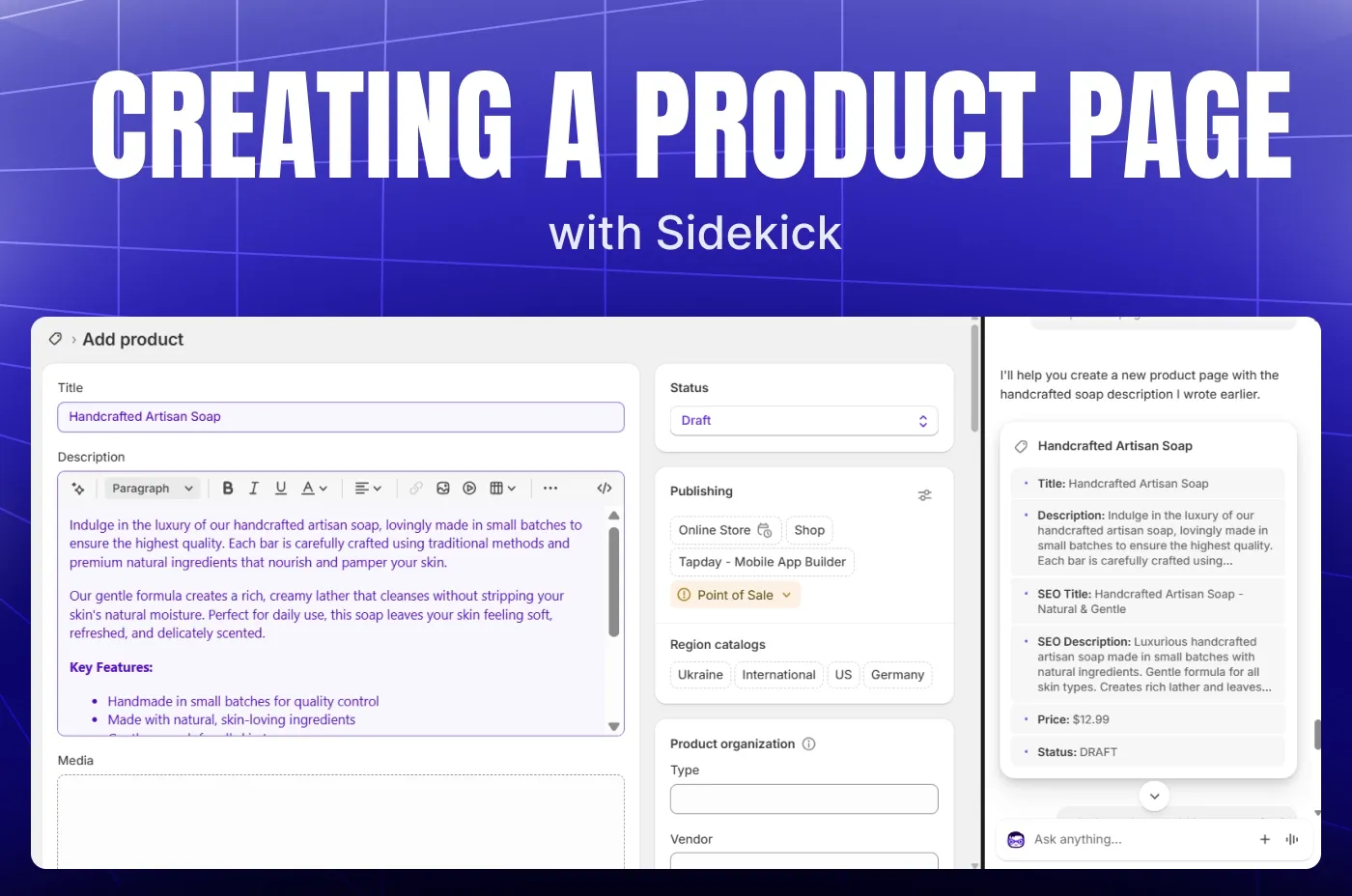
An example of creating a product page with Sidekick.
In the same way, Sidekick creates Collections, Gift cards, and more, reducing time on repetitive tasks.
Inventory and order management
Shopify AI assistant is helpful in managing inventory and orders, offering you multiple options, from analyzing your current inventory levels to getting details about a specific order. This way, instead of checking information through multiple categories, you can get all the necessary insights within one chat.
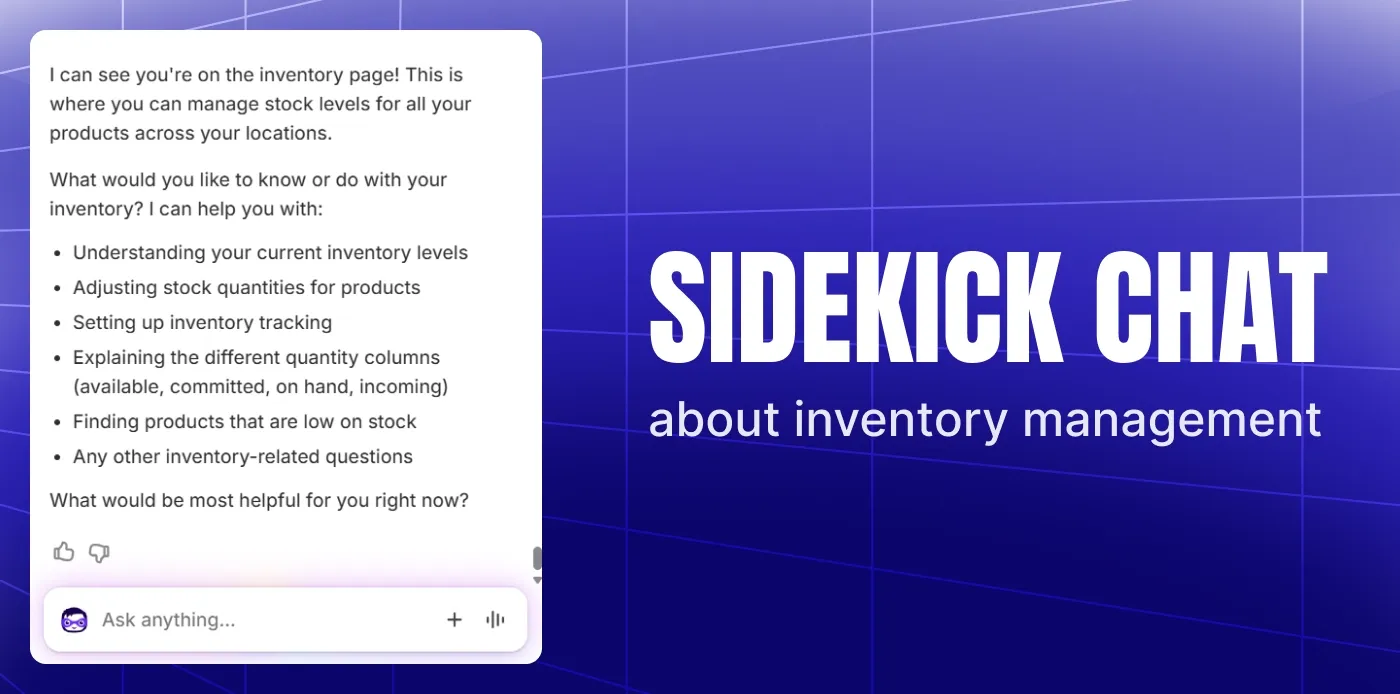
An example of Sidekick chat about inventory management.
Data analysis
Getting reports and in-depth data analysis is also possible with Sidekick. It provides reports and analytics for multiple categories:
Sales and revenue. It shows total sales over a period, sales by product, average order value, and revenue trends with comparisons.
Product performance. In this category, Sidekick provides information about the best-selling products, stock reports, products by revenue, product margin analysis, and more.
Customer insights. Sidekick can analyze customer segments by behavior, customer lifetime value, customer purchase, and retention patterns.
Traffic and conversions. You can get data about the number of online sessions by period, your store's conversion rates, and the amount of traffic and sales by channel.
For any of these cases, you can ask Sidekick to export data in a convenient format, such as CSV or XML.
Theme customization
You can use Sidekick for Shopify theme customization, asking it to help you with new fonts and styles, catchy buttons, and banners. Sidekick is also capable of adding new sections and creating custom blocks. To use these capabilities, you need to open the Shopify theme editor and start prompting to fulfill your request.
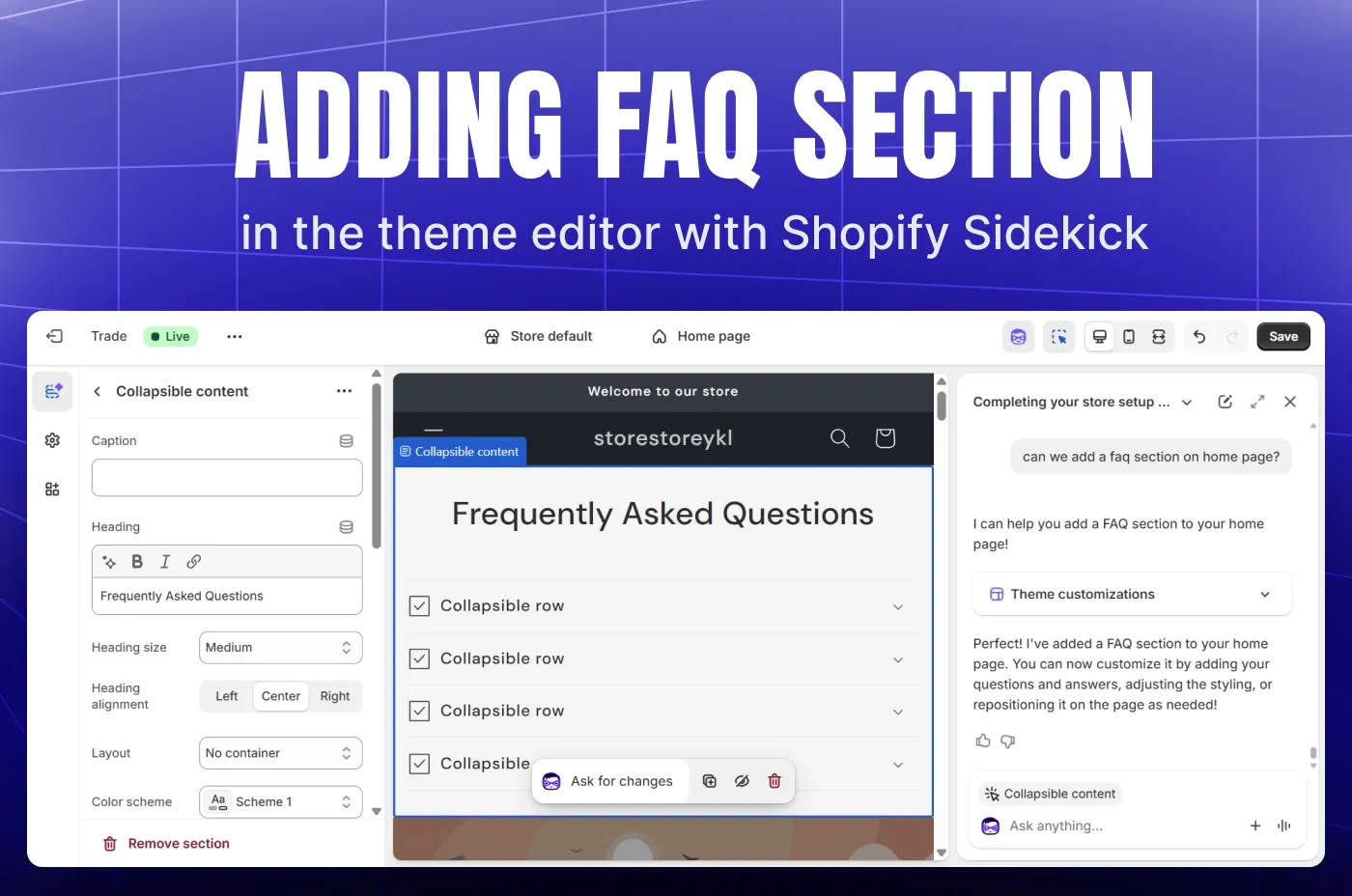
An example of adding an FAQ section in the theme editor by Shopify Sidekick.
A deeper customization, though, still requires you to hire a Shopify developer to deal with Liquid code and add custom logic and tailored features.
Marketing automation
Sidekick can help you with completing multiple marketing tasks:
Create texts for promotional emails, social media posts, and ads with prompts like 'Create a Black Friday email for my skincare brand'.
Build customer segments based on specific characteristics using prompts like 'Show customers who haven't purchased in 60 days or more'.
Create discount campaigns using Sidekick's recommendations with prompts like 'Suggest a bundle discount for products in the haircare category'.
Interpret marketing data for better understanding with prompts like 'Why have sales dropped last week?'.
Create automation workflows in Shopify Flow using Sidekick suggestions with prompts like 'Suggest an email sequence for cart abandonments'.
This is far from the complete list of ideas on how to use Sidekick in your daily routine. Your list of activities will fully depend on your current goals and requirements.
If you still need a real specialist to help you with your store updates and improvements, you will find the right Shopify professional at DigitalSuits.
Sidekick's benefits and limitations
As you can see, Sidekick has robust features to assist merchants, but along with the indisputable advantages, it has some limitations.
Benefits of Sidekick
Reduced learning curve. New merchants are now able to understand how to run their Shopify store much faster than previously.
Saved time on store management. All merchants now have AI-powered means to speed up their management processes.
Data-driven insights. Sidekick helps analyze customer behavior and draw conclusions from complicated data.
Fast troubleshooting. It's now easier to identify technical problems and design issues within your store and fix them without breaking the customer experience.
Sidekick limitations
Limited integration. Currently, Sidekick has limited integrations with third-party tools and external platforms.
AI hallucinations. Sidekick is reported to deliver inaccurate technical information in some cases, so you need to be cautious about using its responses without review.
Time-consuming prompt creation. Even though Sidekick understands requests quite well, some tasks, such as image creation, require additional time to get satisfactory results.
Limited theme and media editing. Sidekick cannot edit theme images or product visuals directly. You need to save a generated image first and upload it for further use.
Recommendations for effective work with the Shopify Sidekick AI assistant
As with any tool, you need to understand all the available Sidekick features first to create your strategy and make the most out of the tool. Here are some tips to help you get started.
- Start with low-risk tasks, such as generating copies and customer segments, to understand Sidekick capabilities before moving to executing complex workflows.
- Use clear and detailed prompts with the required context to save time on clarification. Utilize features like Mentions and Target to speed up the process.
- Save recurring prompts that have shown good results with the Skill feature for repeat use.
- Specify your preferences regarding how Sidekick handles particular tasks or the manner in which it provides the responses.
- Ask Sidekick for step-by-step instructions on how to perform the tasks to save your time on manual processing.
- Provide Sidekick with references to the desired images or features to reduce time on descriptions.
- Review generated content before publishing to edit it if there are missing components or inappropriate formulations.
Pitfalls to avoid when using Sidekick in Shopify
What should you avoid when using Sidekick?
- Ignoring human review of automated tasks and content
- Overlooking brand voice in content generation
- Relying on Sidekick for complex strategic decisions
- Expecting full automation without approval
- Overreliance on data interpretations for critical workflows
Conclusions
Shopify Winter '25 Edition brought a lot of influential updates to Sidekick, and the Shopify team continues to modernize it every month. Shopify Sidekick AI assistant is already a powerful tool with even greater future potential. Its capabilities are expected to grow every year in line with the growth of AI capabilities. At the moment, though, think of Sidekick as your junior assistant that helps you deal with bothersome tasks, but who is not yet ready for full responsibility over your store management.
Frequently asked questions
Is it worth using Sidekick in Shopify on a daily basis?
Yes. Sidekick has plenty of helpful features to speed up task execution and decision-making processes. It has a perfect voice and in-chat support, and it provides quite precise responses. However, you and your staff still need to be fully involved in the store management processes, and Sidekick still can't replace a professional Shopify developer in configuring and maintaining your store.
Is it safe to use Shopify Sidekick AI assistant within your store?
Yes, Sidekick isn't connected to external services, and it processes your data locally within Shopify's ecosystem. It uses your store information only to generate responses for you and doesn't utilize your data for third parties. Plus, given Sidekick is a part of the Shopify infrastructure, it benefits from its robust security framework.
Can I build my store with just Shopify Sidekick AI guidance?
No, Sidekick is not sufficient for complete Shopify store development. It can guide you and explain a lot of things to set up and customize your store faster. However, you still need to spend your time on deeper exploration or hire Shopify developers with proven up-to-date knowledge to get a fully functional store. If you're looking for proven specialists for your project, don't hesitate to contact the DigitalSuits team.

Written by
Anastasiia Moskvichova
Content Marketing Specialist
Anastasiia is an enthusiastic content writer who diligently researches and curates valuable information to craft engaging content tailored for readers with a keen interest in marketing, sales, and technology.









Was this helpful?
0
No comments yet